Consistent Characters in AI Video: Lessons from Whisker Woods
How I keep characters consistent in AI video: series bible, locked reference sheets, image-to-video from keyframes, frame chaining and continuity checks.
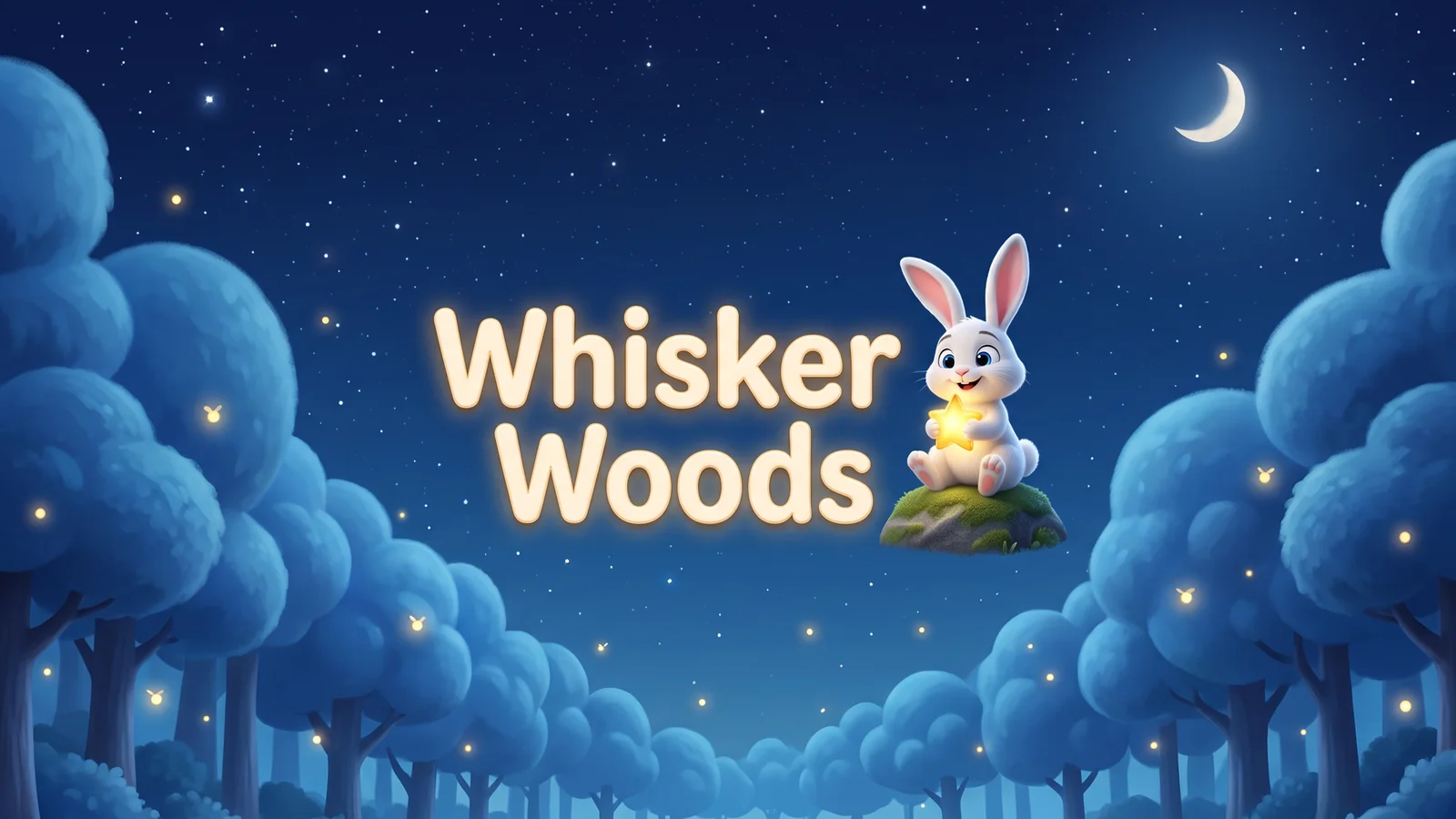
Generating one beautiful AI clip is easy now. Generating the same bunny twice is not. I learned this the hard way while making Whisker Woods, my own AI animated bedtime series for little kids. Each episode is about one minute long, almost wordless, and told with music and pictures. And it only works if a three-year-old recognises Bun-Bun the bunny in every single shot.
Here is the method I use to keep characters consistent across a whole AI animated series: the rules I follow for every episode.
Why AI characters drift
A video model has no memory of your last shot. Every generation re-imagines the character from whatever you give it. If you only give it words (“a small white bunny”), you get a different small white bunny every time: longer ears, a different face, slightly bigger, slightly older.
In a single ad that might pass. In a series it breaks the spell: the viewer has to recognise “the bunny from yesterday” in a second.
So the whole job comes down to one idea: never let the model guess what the character looks like. Give it a picture, every time.
Step 1: Write a series bible
Before I animated anything, I wrote a short series bible. It is one page, and it answers three questions: who is in the world, what the world looks like, and what never changes.
For Whisker Woods, the cast looks like this:
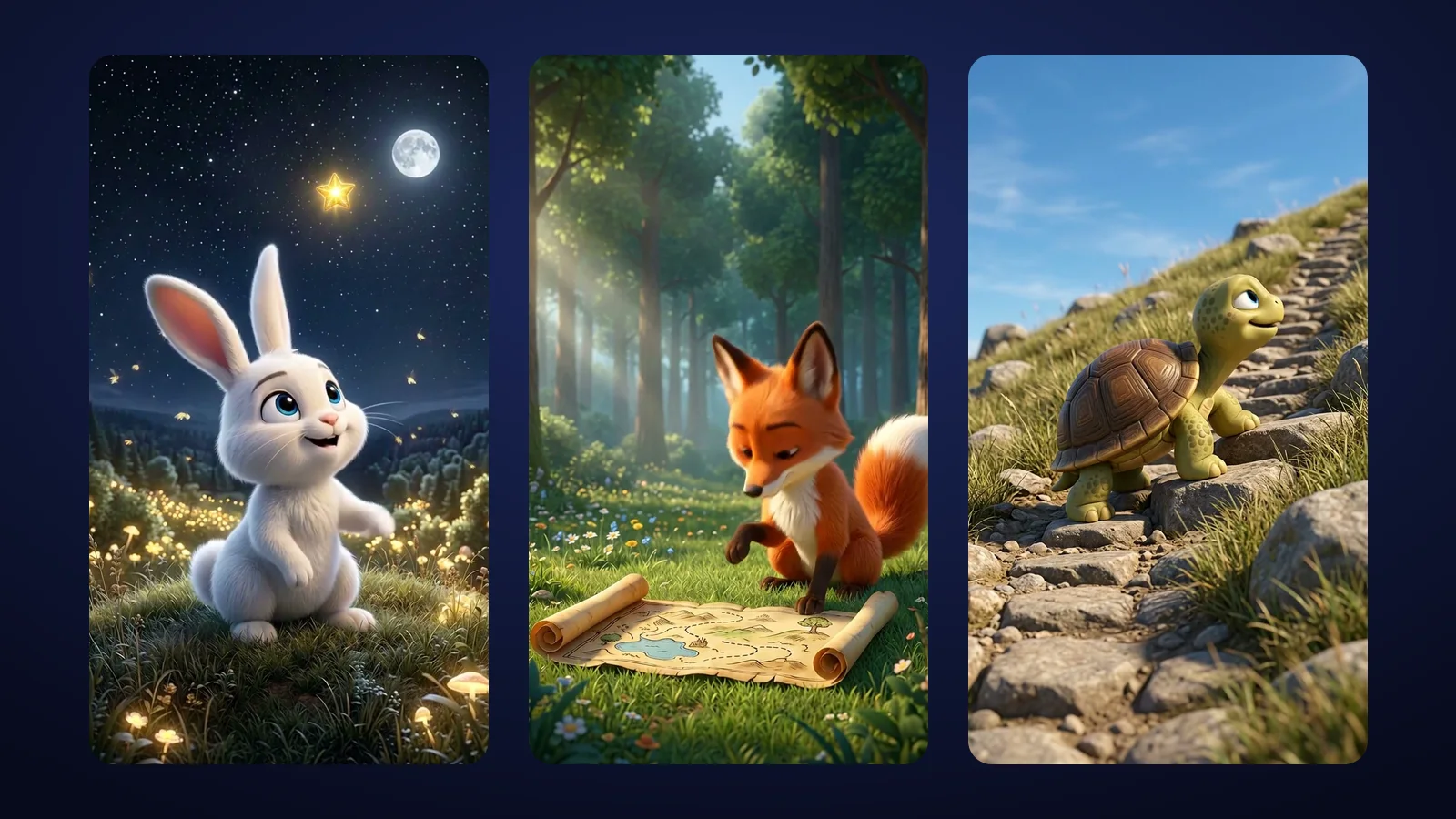
- Bun-Bun, the lead: a small white bunny with blue eyes and pink inner ears. No clothes, no accessories, ever.
- Rusty, the fox: orange fur, white chest, white tail tip, dark legs.
- Pebble, the turtle: green, with a brown patterned shell and big eyes.
- Lumi, the little star: small, gold, with a soft glow, and she only glows when the story says so.
The world has rules too: a soft blue night forest with round trees, fireflies, a sparkling stream with stepping stones, mossy steps up to a hill under a big moon. Day scenes use one warm golden forest path. There are fixed landmarks (the Clearing, the Stepping-Stone Stream, the Moon Hill, the Old Oak), so a new episode never invents a new forest.
The most useful line in the whole bible is the shortest one: draw new frames from the sheets, not from memory.
What goes in a character entry
For each character, I write down:
- Fixed colours. Not “red fox”, but “orange fur, white chest, white tail tip”.
- Proportions. How big each character is next to the others. Pebble is small and low to the ground; Rusty is taller and longer.
- Signature details. What a viewer uses to recognise the character: Rusty’s white tail tip, Pebble’s shell pattern.
- Personality. It drives poses and expressions. Rusty is quick and a bit of a show-off; Pebble is slow and steady.
- Forbidden changes. Bun-Bun never gets a scarf, even in a cold scene. One “cute” accessory and the character is a different character.
New characters join only through an episode that introduces them. After that, they get their own entry and stay exactly as they are.
Step 2: Lock a reference sheet before you animate
The bible is words. The reference sheet is the picture the model actually sees.
I make the reference sheets with several AI image models, using whichever holds the character best: the character from the front, side and back, a few expressions, and a size comparison with the rest of the cast. Current image models can take several reference images at once, including several character images, specifically to keep characters consistent. That is exactly what a series needs.
Then I lock the sheet. No “small improvements” in episode 4. If the sheet keeps evolving, the series drifts with it.
Step 3: Animate from approved keyframes, not from text
This is the step that changed the most for me. I don’t ask the video model to invent a scene from a sentence. Instead:
- I generate a keyframe for each shot with an image model, using the locked reference sheet.
- I check the keyframe against the bible (more on that below).
- Only an approved keyframe goes into a video model as image-to-video; I use different models depending on the shot.
Image-to-video means the model starts from a picture where the character is already correct. It still decides the motion, but it no longer decides who the character is. For Whisker Woods, I run this through ViralVidz, my own workflow that orchestrates models like Google Veo, and I do the final edit in CapCut.
It feels slower, because you make every shot twice. In practice it is faster, because you stop throwing away finished clips with the wrong face.
Step 4: Chain shots with start and end frames
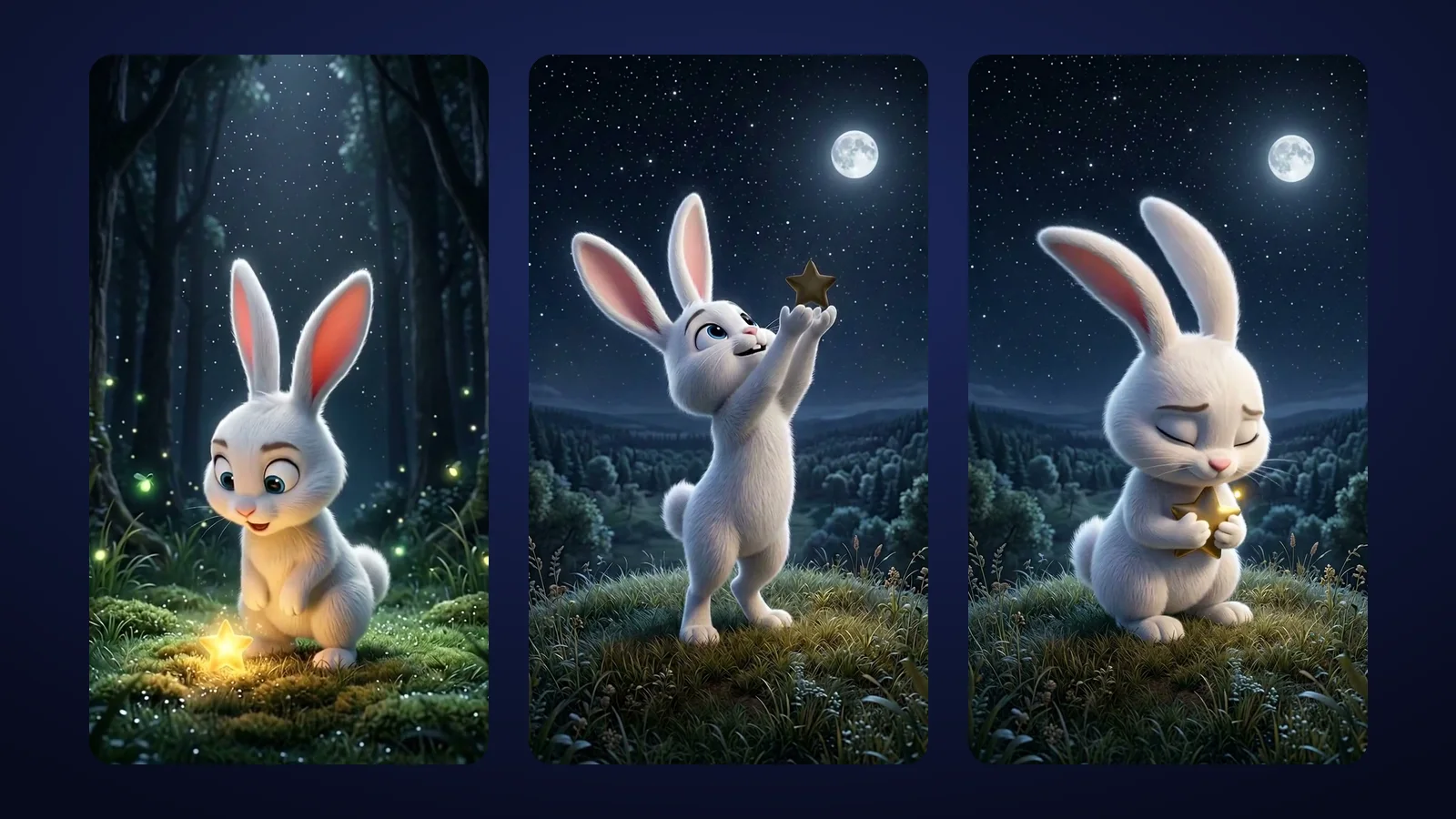
Shots have to connect. When Bun-Bun hops across the stepping stones and starts up the Moon Hill in The Little Star Who Fell, the viewer should feel one journey, not five unrelated clips.
The trick is frame chaining: the last frame of one shot becomes the first frame of the next. Position, light, the star in Bun-Bun’s paws: all of it carries over, because the next shot starts from that picture. Google also documents first-and-last-frame generation for Veo 3.1: you set where a clip begins and where it ends, and the model fills in the motion.
I used the same idea for a different project, The Last Driver of the Virtual City, a 23-second AI short where three scenes flow as one continuous take. Planned start and end frames make three generations feel like one camera move. The same thinking gives every Whisker Woods episode its last frame: a calm pose that loops back into the first.
Step 5: Keep light, time of day and props fixed per scene
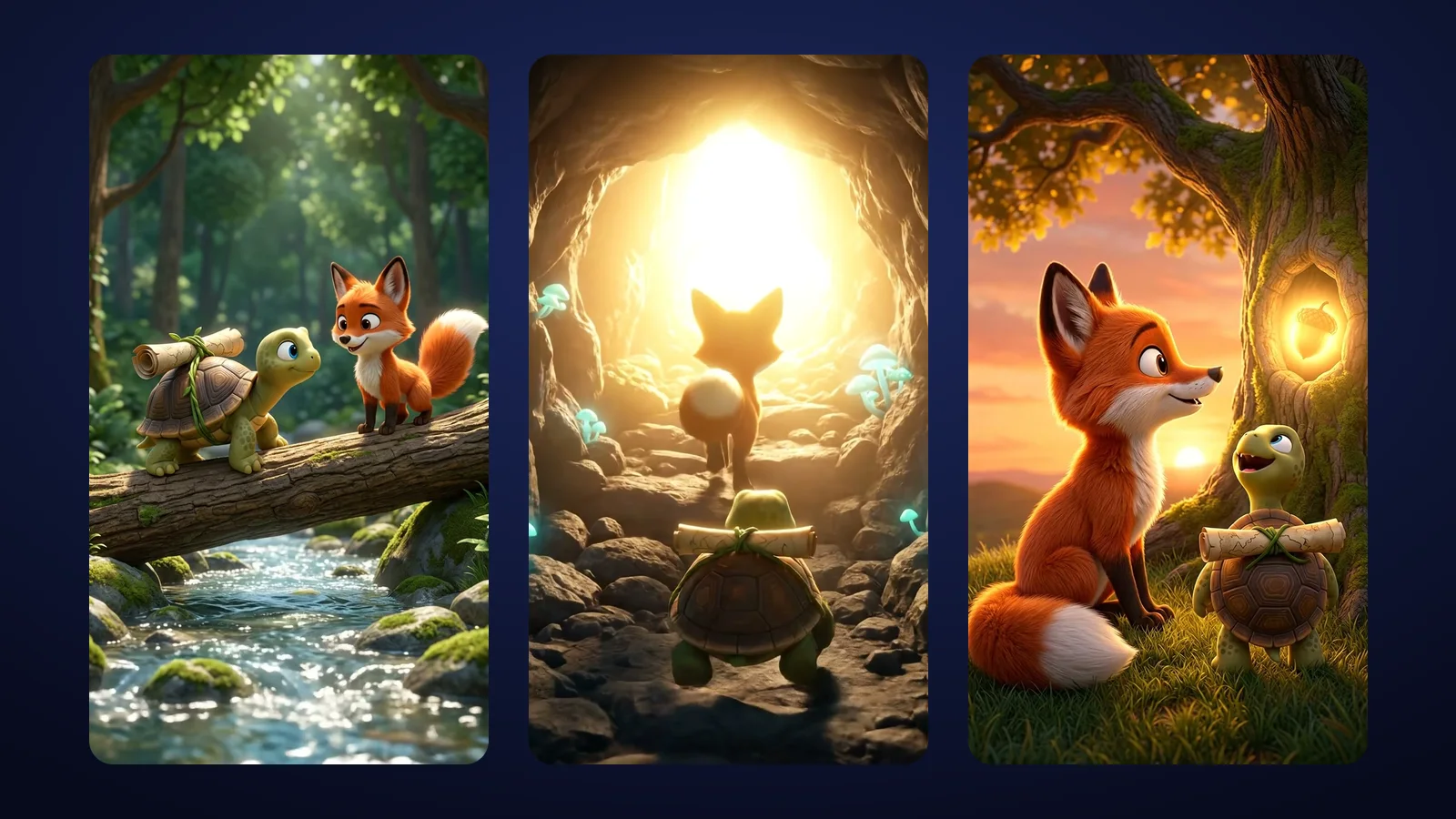
Light drifts too. One shot at blue midnight, the next at golden dusk, and the scene feels like two places.
So every scene in my plan has a fixed time of day and light direction. Night is soft blue with moonlight and fireflies; day is the warm golden path. When time should change, I make it part of the story. In The Fox, the Turtle and the Old Map, Rusty and Pebble set off in the morning and reach the glowing Old Oak at sunset, and the light changes step by step along the way, not randomly between shots.
Props get a list too. For that episode it was the map and the golden acorn. For The Fox and the Turtle Race it was the finish ribbon, the blackberry bush where Rusty naps, and the medal he gives Pebble at the end. A prop list sounds bureaucratic until the ribbon changes colour mid-race.
Step 6: Run a continuity check after every shot
After every generated shot I check the same short list, before I move on:
- Face: eyes, ears, nose, expression in character?
- Colours: fur, shell, tail tip exactly as on the sheet?
- Size: is the character the right size next to the others? (Pebble growing to fox size is a classic.)
- Signature details: white tail tip there? Shell pattern the same? Bun-Bun still without accessories?
- Props and light: same objects, same time of day, same light direction as the previous shot?
It takes about a minute per shot: the cheapest minute in the production.
Step 7: Regenerate drifting shots, don’t fight them in the edit
When a shot fails the check, the temptation is to rescue it: crop it, grade it, cut away fast. In my experience it almost never pays.
A small light mismatch can be fixed with colour. A wrong face can’t. So if the character is wrong, I go back to the approved keyframe and regenerate. Sometimes I adjust the keyframe, sometimes I shorten the action so the model has less room to wander. Short, simple motions drift much less than long, complex ones.
Step 8: Use music and sound as glue
Whisker Woods is almost wordless, so the music carries the story. Each episode has its own original score, always calm and warm, in the same gentle mood. A continuous piece of music over a cut makes two shots feel like one moment, and ambient sound that carries across the cut tells the viewer they are still in the same place.
The same method for brand mascots, AI presenters and product ads
Everything above works outside of children’s animation. For 7+ years I’ve worked with Meta advertisers, and the problem I see most in AI ads is exactly this one: the brand character looks different in every video.
- Brand mascot AI video: a mascot is a cartoon character with a brand guide. Give it a bible entry and a locked reference sheet, then animate only from approved keyframes. That is how people recognise it across a whole campaign.
- AI presenters: the same rules apply to a virtual spokesperson. Fix the face, hair, outfit and setting per series, and check them shot by shot.
- Product ads: never let the model imagine the product. Start from real product photos, build keyframes around them, and check the shape, colours and label in every shot.
If you want to compare the tools for this kind of work, I wrote a separate guide to AI video generators for ads in 2026. And if you would like a recurring character or a consistent AI ad series made for your brand, have a look at my services or get in touch.
Checklist: consistent characters in AI video
- Write a one-page series bible: cast, world, landmarks, rules.
- For each character: fixed colours, proportions, signature details, personality, forbidden changes.
- Make a reference sheet (front, side, back, expressions, size line-up) and lock it.
- Generate a keyframe per shot from the sheet; approve it before animating.
- Animate with image-to-video from approved keyframes only.
- Chain shots: last frame of one shot is the first frame of the next.
- Fix time of day and light direction per scene; change light only on purpose.
- Keep a props and wardrobe list per episode.
- Check every shot: face, colours, size, signature details, props, light.
- Regenerate drifting shots instead of hiding them in the edit.
- Use music and ambient sound to hold scenes together.
- For products: start from real product photos, check the label every time.
FAQ
Why do AI characters change from shot to shot?
Every generation starts from scratch. Unless you give the model a fixed visual reference, it re-imagines the character each time, so ears, colours, size and small details drift.
Is text-to-video enough for a recurring character?
Rarely. Text describes a character in words, and words leave room for interpretation. For a series, generate an approved keyframe from a reference sheet first and animate that image.
How do I connect shots so a scene feels continuous?
Use start and end frames. The last frame of one shot becomes the first frame of the next, and some video models, including Google Veo 3.1, let you set both the first and the last frame of a clip.
Should I fix character drift in the edit?
Usually not. Colour grading and cropping can hide small issues, but a wrong face or a missing detail is faster and cleaner to fix by regenerating the shot from the approved keyframe.
Does the same method work for a brand mascot or a product ad?
Yes. A mascot needs the same reference sheet and rules as a cartoon character, and a product ad should start from real product photos so the shape, colours and label stay accurate.